You need to remove the first twenty seconds of a recording and the last two minutes of silence. The video itself doesn’t change, yet many programs recalculate every frame: they take a long time, the file loses quality, and sometimes even its size changes. A simple trim often doesn’t need any of that: the video can be copied as it is, in seconds and with no loss at all. The only price is one limitation worth knowing, and it comes from keyframes.
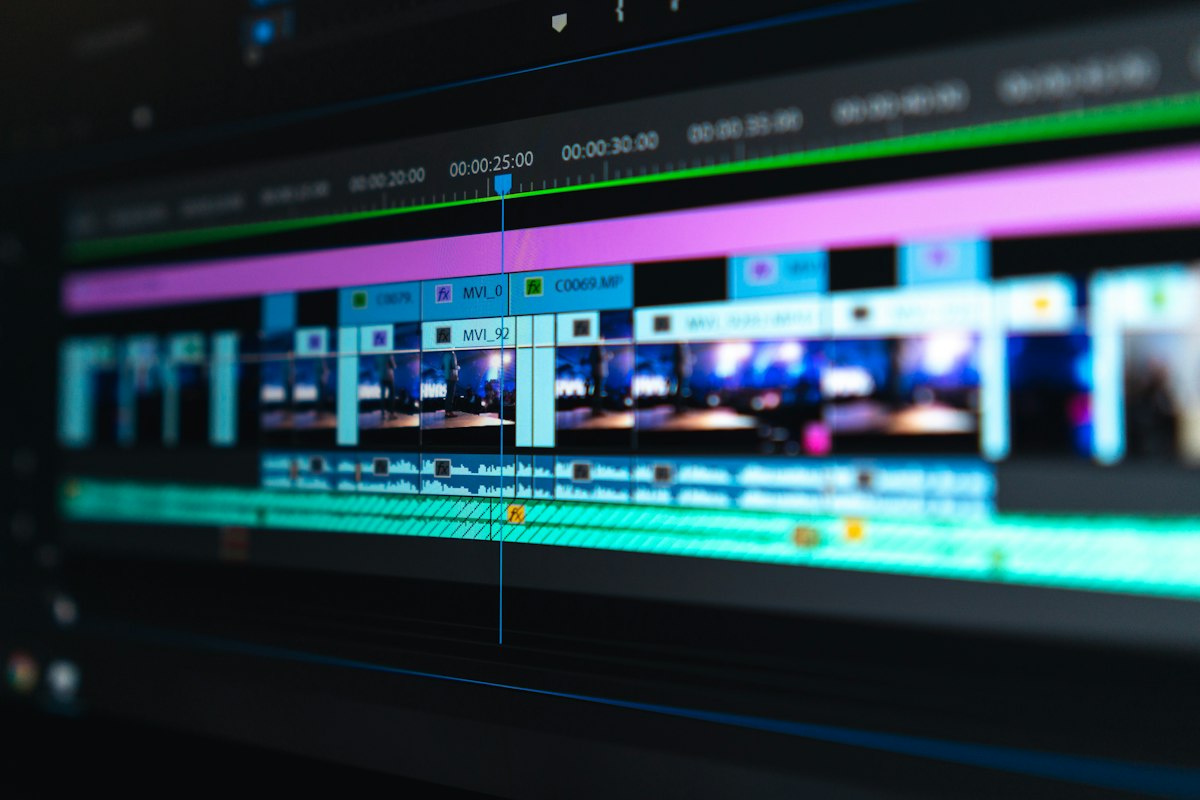
Re-encoding and copying are not the same thing
An H.264 or HEVC video is already compressed. Re-encoding it means decompressing every frame and compressing it again: with ordinary formats some information is lost at each pass, and the work keeps your computer busy.
Copying means taking the compressed data and moving it into a new file without touching it. There’s nothing to calculate, so the time depends mostly on the disk. And there’s no loss: the picture in the trimmed file is the original’s.
The limit: keyframes
Video compression doesn’t store every image in full. Every so often there’s a keyframe, complete and independent; the frames after it only store differences from other frames.
So a copy cut can only start cleanly from a keyframe: start in the middle of a group and the data the following images depend on is missing. What happens next depends on the tool. FFmpeg, for example, moves the start back to the previous keyframe when copying, while other programs may show artifacts in the first moments. Even when starting on a keyframe, in some files the frames near the cut depend on the previous group, so it’s always worth rewatching the start after exporting.
The end of a cut causes fewer problems, because the last frame you keep already has everything it needs to be displayed.
Which method to choose
- Removing the start and end of a clip: copy. A screen recording, a lecture, a match. A few moments of difference at the start usually don’t matter.
- Changing only the file format: copy. Going from MKV to MP4 changes the container, not the video, as long as the new container supports the tracks.
- Cutting on an exact frame: re-encode. If the point doesn’t fall on a keyframe, it’s the only way to start exactly there.
- Applying filters, cropping, or changing resolution: re-encode. You’re changing the images, so they have to be recalculated.
- Joining several parts: it depends. Pieces of the same file can be copied, as long as each one starts on a keyframe. Clips with different codecs or settings need re-encoding.
How to do it on a Mac with rMux
rMux is built for exactly this case. Its timeline marks where the real keyframes are, so you can see where a cut stays clean, and it lets you jump from one to the next.
- Open the video and set the start and end points, moving to the keyframes.
- Leave the video track on Copy, so it’s copied as it is. Each audio track can also be copied, converted, or left out.
- Choose the container and export.
If you need a precise point, just set the track to Transcode. With several segments, the export stays lossless only if all included tracks are on Copy and no subtitles are involved; otherwise the app re-encodes and tells you. The full procedure is in the guide on lossless trimming and In/Out points. The app is free, works offline, and requires a Mac with Apple silicon and macOS 14 or later.
Tip: if you already know a video will be trimmed often, re-encode it once with a short keyframe interval. The file gets bigger, but you’ll have many more clean cut points, and every later trim stays a lossless copy.
What to keep in mind
Copying isn’t always the right choice, but it should be the first one to try: it’s fast, costs no quality, and leaves the original file intact. Re-encoding comes in when precision or a change to the image truly requires it. Knowing where the keyframes are is enough to tell which of the two cases you’re facing.